
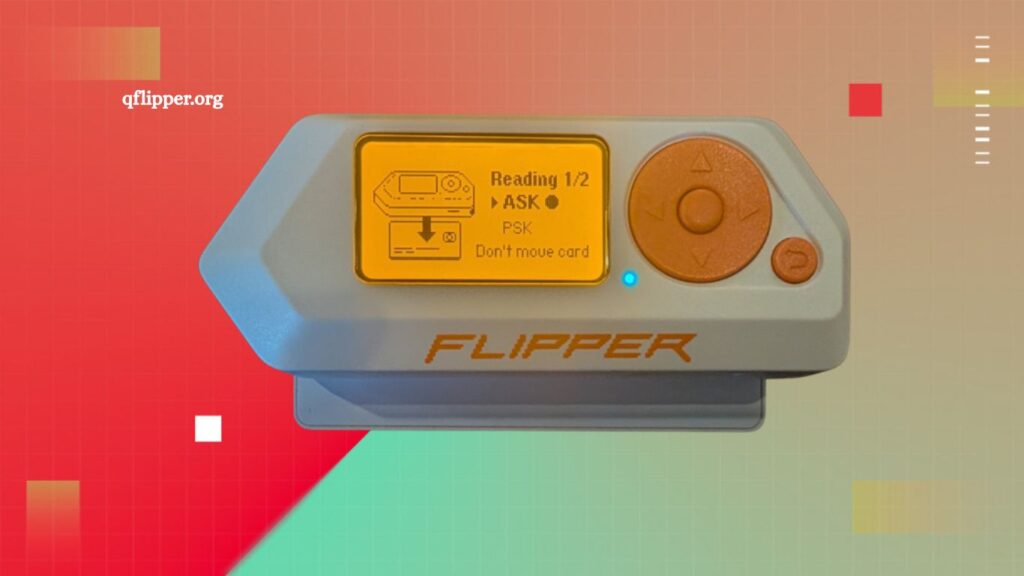
Managing files on your device becomes significantly easier when you understand how to transfer data properly with the right tools. One of the most efficient ways to manage files on the Flipper Zero is through its official desktop companion, qFlipper. This guide explains every step in detail, ensuring a smooth, fast, and secure file transfer process.
What is Flipper Zero?
Flipper Zero is a portable multi-tool device designed for hardware exploration, digital access control, and signal interaction. It supports RFID, NFC, infrared, sub-GHz communication, GPIO control, and more. Users often customize their devices by adding firmware files, databases, plugins, and scripts.
File management plays a critical role in unlocking the full potential of Flipper Zero. Proper transfer methods ensure stable performance and prevent system errors.
Read More: Install Apps on Flipper Zero with qFlipper: Complete Guide.
What is qFlipper?
qFlipper is the official desktop application for managing Flipper Zero devices. It allows users to:
- Update firmware safely
- Transfer files between PC and device
- Access internal storage
- Backup important data
- Monitor device status
Using qFlipper eliminates the risks associated with manual file handling and ensures compatibility with Flipper Zero’s system architecture.
Why File Transfer Matters in Flipper Zero
Efficient file transfer enables users to expand functionality and customize their devices. Common use cases include:
- Installing custom firmware builds
- Adding RFID/NFC databases
- Uploading infrared remote libraries
- Importing plugins and applications
- Managing scripts and automation tools
Incorrect file placement can cause system instability or missing features. Proper use of qFlipper ensures structured and error-free transfers.
Requirements Before File Transfer
Preparation is essential before starting the transfer process. Ensure the following requirements are met:
Installed qFlipper Software
Download and install the latest version of qFlipper from the official Flipper Zero website.
USB Cable Connection
Use a high-quality USB-C cable capable of data transfer, not just charging.
Updated Firmware
Keep the Flipper Zero firmware up to date to prevent compatibility issues.
Fully Charged Device
Low battery levels may interrupt file transfer processes.
Organized Files on PC
Store files in clearly labeled folders to make navigation during upload easier.
Step-by-Step Guide: How to Transfer Files Using qFlipper
Step 1: Connect Flipper Zero to Your Computer
Connect the Flipper Zero device using a USB-C cable. Ensure the device powers on and is recognized by the system.
Open qFlipper once the connection is established. The software will automatically detect your device and display its status.
Step 2: Launch the qFlipper Application
Start the qFlipper application on your desktop. The interface will show device information such as:
- Firmware version
- Storage capacity
- Connection status
A stable connection indicator confirms readiness for file transfer.
Step 3: Access the File Manager Section
Navigate to the “File Manager” tab inside qFlipper. This section allows direct interaction with the device’s internal storage.
You will typically see folders such as:
- apps
- subghz
- nfc
- infrared
- badusb
- music
Each folder represents a specific function within the Flipper Zero ecosystem.
Step 4: Select Files from Your Computer
Choose the files you want to transfer. These may include:
- .fap (Flipper applications)
- .sub (Sub-GHz files)
- .ir (Infrared signals)
- .nfc (NFC dumps)
- .txt or script files
Ensure the file is compatible with the Flipper Zero before uploading.
Step 5: Drag and Drop Files into qFlipper
Drag selected files from your computer and drop them into the correct directory inside qFlipper.
Example:
- Infrared files go into the “infrared” folder
- NFC files go into the “nfc” folder
- Sub-GHz files go into the “subghz” folder
Proper placement ensures that the device recognizes files correctly.
Step 6: Wait for Transfer Completion
qFlipper will display a progress bar during file transfer. Avoid disconnecting the device while the process is running.
A confirmation message appears once the transfer completes successfully.
Step 7: Safely Disconnect the Device
Close qFlipper and safely eject the Flipper Zero from your system. This prevents file corruption and ensures system stability.
Common File Types Supported by Flipper Zero
Understanding file types helps in better organization and usage.
Used for storing and emulating NFC tags.
RFID Files
Contain RFID card data for access control simulation.
Infrared Files
Used for remote control signals such as TVs, AC units, and appliances.
Sub-GHz Files
Handle radio frequency signals for compatible devices.
Application Files (.fap)
Custom apps and tools that extend functionality.
Scripts
Automation files are used for advanced operations.
Troubleshooting File Transfer Issues
Device Not Detected
Reconnect the USB cable or try a different port. Restart qFlipper if necessary.
Transfer Fails Midway
Check cable quality and ensure a stable connection.
Files Not Visible on Device
Confirm correct folder placement and file format compatibility.
Firmware Errors
Update Flipper Zero firmware to the latest version using qFlipper.
Best Practices for Smooth File Management
Following best practices ensures long-term stability and performance.
Keep Files Organized
Maintain structured folders on both PC and device.
Avoid Unsupported Files
Only transfer compatible formats to prevent system errors.
Regular Backups
Use qFlipper to back up important data frequently.
Update Software Regularly
Keep both firmware and qFlipper updated for best performance.
Do Not Overload Storage
Leave free space for system operations and updates.
Advantages of Using qFlipper for File Transfer
Using qFlipper provides several benefits:
- Secure file handling
- Easy drag-and-drop interface
- Real-time device monitoring
- Official support from developers
- Reduced risk of data corruption
Manual methods may lead to errors, while qFlipper ensures reliability and simplicity.
Advanced Tips for Power Users
Experienced users can maximize efficiency by:
- Creating custom firmware builds before transfer
- Automating file organization workflows
- Using GitHub repositories for safe file sourcing
- Testing files in sandbox environments before deployment
- Keeping version control for plugins and scripts
These practices enhance performance and reduce operational risks.
Frequently Asked Questions
What is qFlipper used for with Flipper Zero?
qFlipper is the official desktop application for managing Flipper Zero, including firmware updates, file transfers, backups, and device monitoring.
Can I transfer files to Flipper Zero without qFlipper?
Yes, advanced users can use manual methods like SD card access, but qFlipper is the safest and most recommended option.
Which file types can I transfer to Flipper Zero?
Common supported files include .fap, .nfc, .sub, .ir, scripts, and configuration files, depending on the module.
Why is my Flipper Zero not showing in qFlipper?
This usually happens due to a faulty USB cable, outdated drivers, or incorrect connection mode. Restarting the app often helps.
Where do I place files inside qFlipper?
Files must be placed in the correct folders, such as NFC, Infrared, Sub-GHz, or Apps, to work properly on Flipper Zero.
Is qFlipper safe to use for file transfer?
Yes, qFlipper is the official tool for Flipper Zero and ensures secure, stable file transfers.
What should I do if the file transfer fails?
Check the USB connection, ensure sufficient storage space, verify file format compatibility, and retry with updated qFlipper software.
Conclusion
Transferring files to Flipper Zero using qFlipper provides a reliable, structured approach to device management. The process ensures safe handling of firmware, applications, and configuration files without risking system stability. With proper file placement and a stable USB connection, users can efficiently customize and expand device functionality.