
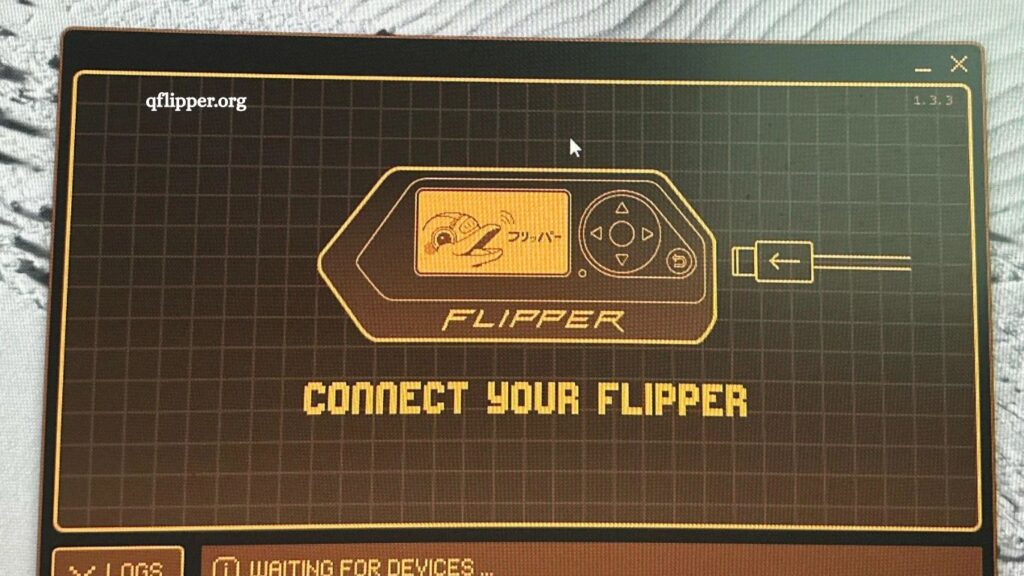
qFlipper is the official desktop companion for the Flipper Zero, designed to manage firmware updates, file transfers, and device settings through USB or Bluetooth. Connection issues between qFlipper and Flipper Zero are common and usually stem from software conflicts, cable problems, or system-level settings. Understanding the root causes helps restore connectivity quickly and prevents future interruptions.
This guide explains why qFlipper fails to detect Flipper Zero and provides structured, practical solutions to fix the issue on Windows, macOS, and Linux systems.
Understanding the qFlipper and Flipper Zero Connection
Flipper Zero connects to qFlipper primarily through a USB cable using a serial communication interface. When properly detected, the device appears instantly within the qFlipper dashboard, allowing firmware updates and file management.
Detection failure means the operating system or qFlipper cannot establish a stable communication channel with the device. This interruption may occur at hardware, driver, or software level.
Read More: Update Flipper Zero Firmware Easily with qFlipper.
Common Reasons Why qFlipper Does Not Detect Flipper Zero
Several factors can block detection. Identifying the correct cause is essential before applying fixes.
Faulty or Charge-Only USB Cable
Many USB cables support charging only and do not transmit data. Flipper Zero requires a data-capable USB cable to communicate with qFlipper.
A damaged or low-quality cable can also break data transmission, even if charging works normally.
Incorrect USB Port or Connection Issue
Some USB ports, especially front-panel ports or USB hubs, may not provide stable data transfer. Loose connections can also interrupt detection.
Missing or Corrupt Drivers (Windows)
Windows systems rely on USB serial drivers. If drivers are missing or corrupted, Flipper Zero will not appear in qFlipper.
Outdated qFlipper Version
Older versions of qFlipper may not support the latest firmware or device protocols. This leads to compatibility issues.
Flipper Zero Not in Correct Mode
Flipper Zero must be in a normal operating state. If it is stuck in DFU mode, boot loop, or recovery mode, qFlipper may fail to detect it.
Conflicting Software or Background Applications
Other serial tools or device managers may lock the USB port. This prevents qFlipper from accessing the device.
Power or Battery Issues
A fully drained or unstable battery can prevent proper USB initialization. Even when connected, the device may not respond.
Operating System Permission Restrictions (macOS/Linux)
On macOS and Linux, permission settings can block access to USB serial devices, requiring manual configuration.
Step-by-Step Solutions to Fix qFlipper Not Detecting Flipper Zero
Each fix targets a specific cause. Follow them in sequence for best results.
Step 1: Check the USB Cable and Connection
Start with the simplest possibility.
- Use an original or high-quality USB data cable
- Avoid cheap charging-only cables
- Try different USB ports directly on the computer
- Remove USB hubs or adapters during testing
If Flipper Zero starts connecting, the issue was cable-related.
Step 2: Restart Both Devices
A restart often clears temporary communication glitches.
- Disconnect Flipper Zero from the USB
- Power off and restart Flipper Zero
- Restart your computer
- Reconnect the device after reboot
This resets the USB handshake and driver initialization.
Step 3: Update qFlipper to the latest version
Outdated software causes frequent detection issues.
- Download the latest version from the official Flipper Zero website
- Install a fresh version instead of updating the old build
- Restart the application after installation
Updated versions improve USB handling and device compatibility.
Step 4: Reinstall USB Drivers (Windows Only)
Driver issues are one of the most common causes on Windows systems.
- Open Device Manager
- Locate an unknown USB device or a Flipper-related entry
- Uninstall the device and delete the driver software
- Reconnect the Flipper Zero to reinstall drivers automatically
Alternatively, install official USB drivers from Flipper Zero resources if required.
Step 5: Check Device Mode on Flipper Zero
Flipper Zero must boot normally.
- Ensure the device is not stuck on the update or recovery screen
- Hold the back button to reboot the device
- Avoid DFU mode unless performing firmware flashing
Normal boot ensures qFlipper detection.
Step 6: Close Conflicting Applications
Other software can block USB serial access.
- Close Arduino IDE, PuTTY, and serial monitors
- End background processes using USB ports
- Restart qFlipper after closing conflicting apps
This frees the communication channel.
Step 7: Try Another Computer or OS Test
Testing on another system helps isolate the problem.
- Connect Flipper Zero to a different PC
- Install qFlipper fresh
- Check if detection works
If it works elsewhere, the issue lies in the original system configuration.
Step 8: Fix macOS Permissions
macOS may block USB access without permission.
- Open System Settings
- Navigate to Privacy & Security
- Allow qFlipper under USB or device access settings
- Restart the application after changes
Proper permissions restore detection capability.
Step 9: Fix Linux Access Permissions
Linux systems require user access to serial ports.
Run the following command:
- sudo usermod -a -G dialout $USER
- Then reboot the system.
This grants access to USB serial devices used by Flipper Zero.
Step 10: Reinstall qFlipper Completely
A corrupted installation can break detection.
- Uninstall qFlipper completely
- Delete leftover configuration files
- Download the latest installer
- Reinstall a fresh version
A clean installation often resolves persistent issues.
Advanced Troubleshooting Tips
If basic fixes fail, deeper system-level checks may help.
- Check Device Recognition Logs
- Windows: Device Manager errors
- macOS: System Information → USB section
- Linux: dmesg | grep tty
Logs reveal whether the system detects hardware at all.
Test Bootloader Mode Carefully
Flipper Zero bootloader mode is used for firmware recovery. If stuck, re-flash firmware using official tools.
Inspect USB Power Delivery
Some USB ports limit power output. Switching to a powered USB hub or motherboard port can help.
Preventing Future Detection Issues
Preventive steps reduce future connection problems.
- Always use certified data USB cables
- Keep qFlipper updated regularly
- Avoid interrupting firmware updates
- Maintain the Flipper Zero battery above the critical level
- Disconnect safely before unplugging the USB
Consistent maintenance ensures stable communication.
Frequently Asked Questions
Why is qFlipper not detecting my Flipper Zero?
qFlipper may not detect Flipper Zero due to faulty USB cables, outdated software, missing drivers, or incorrect device mode.
Does every USB cable work with Flipper Zero?
No, only data-supported USB cables work. Charging-only cables cannot establish a connection between qFlipper and Flipper Zero.
How do I fix qFlipper connection issues on Windows?
Update qFlipper, reinstall USB drivers, change USB ports, and restart both PC and Flipper Zero to restore detection.
Can an outdated qFlipper cause detection problems?
Yes, older versions may not support current firmware or device protocols, leading to connection failure.
Why does Flipper Zero show charging but not connect?
This usually indicates a non-data USB cable or driver issue preventing proper communication with qFlipper.
Does Flipper Zero need a special mode to connect?
No special mode is required. It should be in normal operating mode, not DFU or recovery mode, for detection.
How can I prevent qFlipper connection issues in the future?
Use high-quality USB cables, keep software up to date, avoid interrupting updates, and maintain proper device battery levels.
Conclusion
qFlipper detection issues with Flipper Zero usually stem from simple, fixable causes such as USB cable limitations, outdated software, driver conflicts, or incorrect device states. A structured troubleshooting approach resolves most problems quickly without advanced technical steps.