
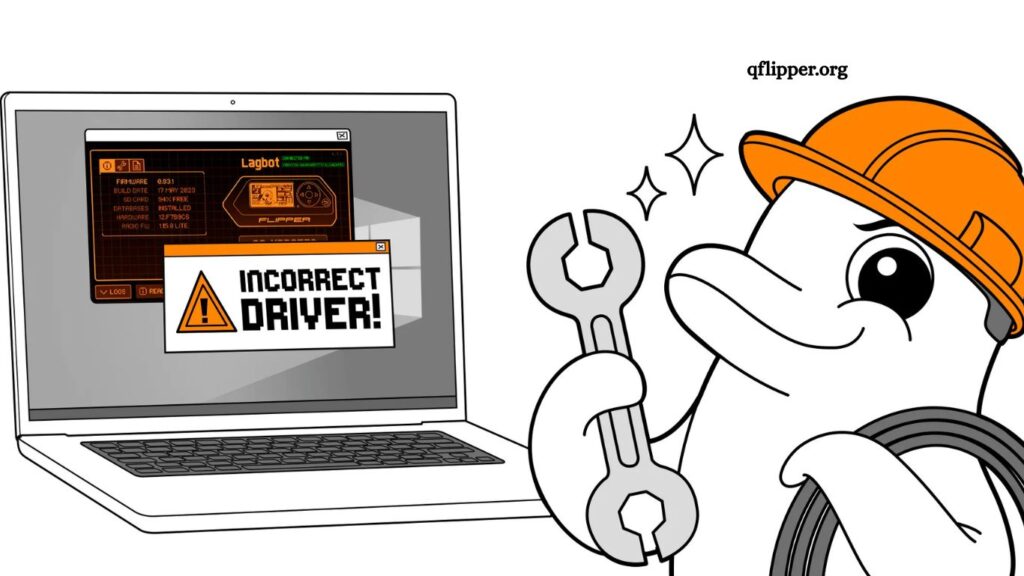
Struggling to connect your device through qFlipper can quickly disrupt your workflow. Connection failures, missing drivers, or unrecognized devices are common issues users of Flipper Zero face. Fortunately, most of these problems are easy to diagnose and fix with the right approach. This guide explains practical, step-by-step solutions to restore a stable connection and ensure smooth device performance.
Understanding qFlipper Connection Problems
Connection issues typically arise due to faulty USB cables, outdated drivers, incorrect permissions, or software conflicts. When qFlipper fails to detect your device, the root cause is often a communication breakdown between your computer and the hardware.
Common symptoms include:
- Device not recognized
- “No device connected” message
- Driver installation errors
- Intermittent disconnections
Identifying the exact issue helps you apply the correct fix quickly.
Read More: qFlipper Not Detecting Flipper Zero: Causes and Fixes
Check Physical Connections First
Start with the basics before diving into advanced fixes.
Use a reliable USB cable. Charging-only cables cannot transfer data, which prevents proper communication. Switch to a high-quality data cable and connect directly to your computer’s USB port instead of using a hub.
Inspect the USB port for dust or damage. Try another port if the device is still not detected. Many connection problems are resolved at this stage.
Update qFlipper to the Latest Version.
Running an outdated version of qFlipper can lead to compatibility issues.
Download the latest release from the official source and install it properly. Updated versions often include bug fixes, improved driver handling, and enhanced device detection.
Restart the application after updating to ensure changes take effect.
Install or Reinstall Drivers Properly
- Driver issues are one of the most common causes of connection failures.
On Windows
Open Device Manager and check for unknown devices. If Flipper Zero appears with a warning icon, the driver is either missing or corrupted.
Steps to fix:
- Uninstall the problematic driver
- Disconnect the device
- Restart your system
- Reconnect the device and allow automatic driver installation
Manual driver installation may be required in some cases.
On macOS
- macOS usually handles drivers automatically. However, permission issues may block device access.
- Grant the necessary permissions in System Settings and ensure that no security restrictions are affecting the connection.
On Linux
- Linux systems may require udev rules configuration.
- Add the appropriate rules to allow access to the device, then reload the udev settings. Without correct permissions, qFlipper cannot detect the device.
Restart Device and Application
- Simple restart procedures often fix temporary glitches.
- Disconnect Flipper Zero, close qFlipper, and reboot your computer. Reconnect everything after the system restarts.
- This clears minor software conflicts and refreshes system processes.
Check Firmware Compatibility
- Outdated firmware can cause communication problems with newer versions of qFlipper.
- Open the application and check for firmware updates. Install the latest firmware to ensure compatibility.
- Avoid disconnecting the device during firmware updates to prevent corruption.
Disable Conflicting Software
- Certain background applications can interfere with USB communication.
- Programs such as virtual machine tools, USB monitoring software, or security applications may block access. Temporarily turn off these tools and test the connection again.
- If the issue resolves, adjust settings or uninstall the conflicting software.
Use Zadig for Driver Fixes (Windows Advanced Solution)
- Advanced users can use Zadig to fix driver issues manually.
- Install the correct USB driver using Zadig and assign it to the device. This method is useful when automatic installation fails or incorrect drivers are assigned.
- Follow instructions carefully to avoid misconfiguring other USB devices.
Check USB Power Settings
- Power management settings can sometimes turn off USB ports to save energy.
- Navigate to Device Manager and turn off power-saving options for the USB Root Hub. This prevents your system from turning off the port unexpectedly.
- Stable power delivery ensures consistent device communication.
Test on Another Computer
- Testing your device on a different system helps isolate the issue.
- If Flipper Zero connects successfully elsewhere, the problem likely lies in your original system configuration. Otherwise, the device itself may require inspection.
Reset Flipper Zero Settings
- Persistent issues may require resetting device settings.
- Perform a factory reset carefully, as this will erase stored data. Back up important files before proceeding.
- Resetting restores default configurations and can resolve deep software conflicts.
Reinstall qFlipper Completely
- Corrupted installations can prevent proper functionality.
- Uninstall qFlipper, remove leftover files, and reinstall the latest version. Fresh installations eliminate hidden errors and restore normal operation.
Monitor Logs for Errors
- Diagnostic logs provide valuable insight into connection failures.
- Check logs within qFlipper to identify error messages. These logs can guide troubleshooting or help when seeking support from the community.
Seek Community or Official Support
- Complex issues may require expert assistance.
- Visit the official forums, GitHub repositories, or support channels for Flipper Zero. Provide detailed information about your issue, including operating system, software version, and error messages.
- Community-driven solutions often address uncommon problems quickly.
Prevent Future Connection Issues
Maintaining a stable setup reduces the chances of recurring problems.
Use high-quality cables, keep software up to date, and avoid unnecessary system modifications. Regular maintenance ensures consistent performance and reliable connections.
Frequently Asked Questions
Why is qFlipper not detecting my device?
Connection issues usually occur due to faulty USB cables, missing drivers, or outdated software. Switching cables and updating the app often resolves the problem.
How do I fix driver issues for Flipper Zero on Windows?
Open Device Manager, uninstall the faulty driver, restart your system, and reconnect the device to allow the driver to reinstall automatically.
Does macOS require manual driver installation for qFlipper?
macOS typically installs drivers automatically. Granting proper permissions in system settings ensures smooth device detection.
What should I do if qFlipper keeps disconnecting?
Use a high-quality data cable, avoid USB hubs, and turn off USB power-saving settings to maintain a stable connection.
Can outdated firmware cause connection problems?
Yes, outdated firmware on the Flipper Zero may cause compatibility issues. Updating firmware often fixes these errors.
Is Zadig safe for fixing driver issues?
Zadig is safe when used correctly. It helps install proper USB drivers when automatic installation fails on Windows systems.
How can I prevent future qFlipper connection issues?
Keep software up to date, use reliable cables, avoid conflicting programs, and maintain proper system settings for consistent performance.
Conclusion
Resolving connection or driver issues with qFlipper becomes straightforward with a structured approach. Checking cables, updating software, installing correct drivers, and ensuring firmware compatibility addresses most problems quickly. Reliable setup, proper system configuration, and regular updates help maintain stable communication with Flipper Zero. Consistent troubleshooting habits ensure smooth performance and prevent recurring connection failures.