
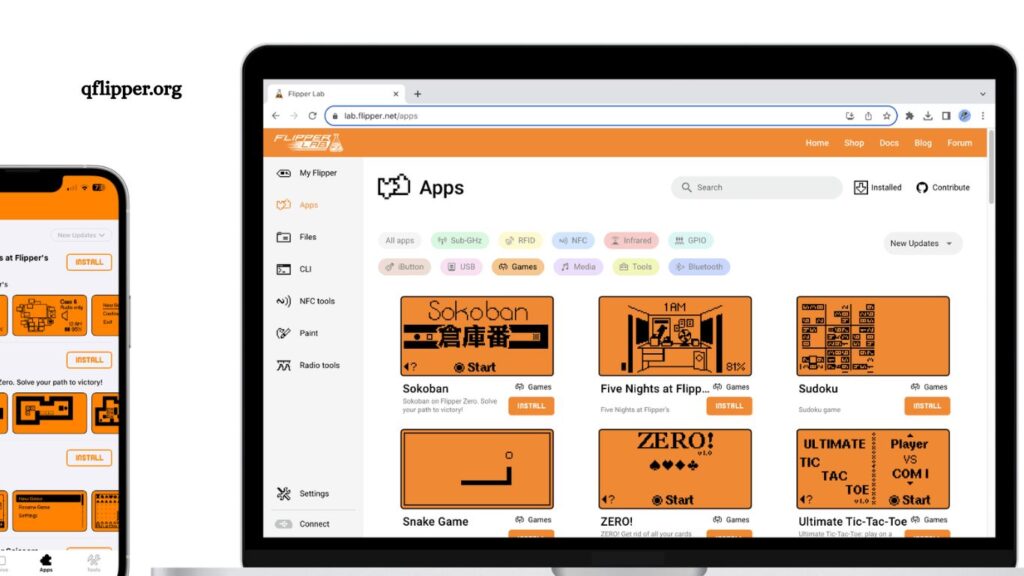
Curious whether apps can be installed on Flipper Zero using qFlipper? Short answer: yes—but understanding how it works unlocks the full potential of this powerful multi-tool device. This guide explains everything in a clear, practical way, from basic concepts to step-by-step instructions, so you can confidently install and manage apps.
Understanding Flipper Zero and Its App Ecosystem
Flipper Zero functions as a portable tool for cybersecurity and hardware experimentation. Built for enthusiasts, developers, and curious learners, it supports multiple features like RFID, NFC, infrared, sub-GHz signals, and GPIO interactions. Unlike traditional smartphones, Flipper Zero doesn’t use app stores in the typical sense. Instead, apps come as firmware extensions or standalone application files.
qFlipper acts as the official desktop companion software. It provides a user-friendly interface for managing firmware, transferring files, and installing applications. Rather than installing apps directly from an online store, users rely on firmware updates or manually transferring compatible files.
Read More: Fix qFlipper Connection and Driver Issues Quickly and Easily.
How App Installation Works on Flipper Zero
Installing apps on Flipper Zero revolves around two main approaches:
Firmware-Based Apps
Most apps are bundled within firmware builds. Custom firmware versions often include additional tools, plugins, and enhancements not found in the official release.
Manual File Transfer
Some apps are distributed as .fap (Flipper Application Package) files. These can be transferred directly to the device using qFlipper.
Both methods rely on qFlipper as the bridge between your computer and Flipper Zero.
Setting Up qFlipper for App Installation
Before installing any apps, proper setup ensures smooth operation.
Step 1: Download and install qFlipper
Visit the official Flipper Zero website and download qFlipper for your operating system. Installation takes only a few minutes.
Step 2: Connect Flipper Zero
Use a USB cable to connect your Flipper Zero to your computer. Launch qFlipper, and the device should be detected automatically.
Step 3: Update Firmware
Keeping firmware updated is essential. Navigate to the firmware section in qFlipper and install the latest version. Updated firmware ensures compatibility with newer apps.
Installing Apps via Firmware Updates
Firmware updates provide the easiest way to expand functionality.
- Process Overview
- Open qFlipper
- Navigate to firmware settings
- Choose official or custom firmware
- Install and reboot the device
Custom firmware often includes pre-installed apps such as signal analyzers, debugging tools, and experimental features. However, always verify sources to avoid security risks.
Installing Apps UsingFAP Files
Manual installation offers more flexibility.
- Step-by-Step Guide
- Download a compatible .fap file from a trusted source
- Open qFlipper
- Navigate to the file manager
- Upload the file to the /apps directory on Flipper Zero
- Safely disconnect the device
- Access the app directly from the device menu
Manual installation allows users to experiment with niche or community-developed apps not included in firmware builds.
Benefits of Using qFlipper for App Management
qFlipper simplifies what would otherwise be a complex process.
Centralized Control
Manage firmware, files, and apps in one interface without needing command-line tools.
Safe File Transfers
Drag-and-drop functionality reduces errors during installation.
Firmware Customization
Easily switch between official and custom firmware versions.
Backup and Restore
Protect data by creating backups before installing new apps.
Common Issues and Solutions
Device Not Recognized
Ensure USB drivers are properly installed. Try reconnecting or switching ports.
App Not Appearing
Verify correct file placement in the /apps directory and ensure compatibility with the firmware version.
Firmware Installation Errors
Restart both qFlipper and the device, then retry installation.
Safety and Legal Considerations
Flipper Zero offers powerful capabilities, which require responsible use.
- Use apps only for ethical and legal purposes
- Avoid unauthorized signal interception
- Download apps from trusted sources to prevent malware
Responsible usage protects both your device and your reputation.
Tips for Optimizing Your Flipper Zero Experience
Explore Community Resources
Developer communities frequently release new apps and updates.
Test Apps Carefully
Install one app at a time to identify compatibility issues.
Keep Firmware Updated
Latest firmware ensures stability and access to new features.
Organize Files
Maintain a clean directory structure to make navigation easier.
Advanced Customization Options
Experienced users often go beyond basic installation.
Custom Firmware Builds
Developers create firmware with enhanced features, additional protocols, and experimental tools.
App Development
Flipper Zero supports custom app development using its SDK. Developers can build unique tools tailored to specific needs.
Automation Scripts
Some apps allow automation, enabling repetitive tasks to run efficiently.
Why qFlipper Remains Essential
qFlipper isn’t just a file transfer tool—it’s the backbone of Flipper Zero management. Without it, installing apps would require complex manual commands. Its intuitive design makes advanced features accessible even to beginners.
Frequently Asked Questions
Can I install apps on Flipper Zero using qFlipper?
Yes, qFlipper allows you to install apps by transferring .fap files or updating firmware that includes built-in apps.
Do I need custom firmware to install apps on Flipper Zero?
No, but custom firmware can provide additional apps and features not available in the official version.
Where do I put .fap files on Flipper Zero?
You should place .fap files in the /apps directory using qFlipper’s file manager.
Is qFlipper safe to use for installing apps?
Yes, qFlipper is the official software for Flipper Zero and is safe when used with trusted files and sources.
Why isn’t my app showing on the Flipper Zero after installation?
The app may be incompatible with your firmware version or may have been placed in the wrong directory.
Can I uninstall apps from Flipper Zero using qFlipper?
Yes, you can remove app files directly from the device storage using qFlipper.
Do apps on the Flipper Zero require an internet connection to work?
Most apps do not require an internet connection, as they run locally on the device’s hardware.
Conclusion
Installing apps on Flipper Zero through qFlipper remains a simple and flexible process once the workflow is understood. Whether using firmware updates or manual .fap file transfers, both methods give access to expanded features and community-developed tools. qFlipper serves as the essential bridge between computer and device, ensuring smooth installation, updates, and file management.