
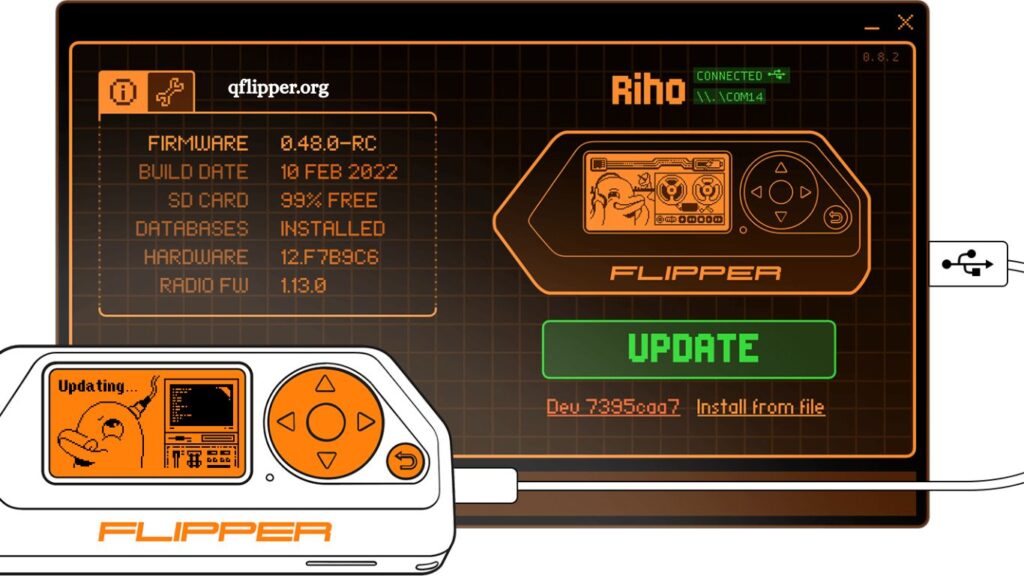
Flipper Zero firmware updates unlock new features, improve performance, and fix bugs that can affect daily use. Regular updates ensure the device stays secure and compatible with the latest tools. This guide explains how to update Flipper Zero firmware using qFlipper in a clear, practical way—no guesswork, no confusion.
What Is Flipper Zero Firmware?
Firmware acts as the operating system for Flipper Zero. It controls how the device interacts with hardware components such as NFC, RFID, infrared, and GPIO. Developers frequently release updates to enhance stability, add features, and patch vulnerabilities.
Running outdated firmware can lead to compatibility issues and reduced functionality. Keeping firmware current ensures smooth performance and access to the latest capabilities.
Read More: qFlipper Safety and Official Status: Is It the Legit Flipper Zero Software?
What is qFlipper?
qFlipper is the official desktop application for managing Flipper Zero. It allows users to update firmware, transfer files, install applications, and monitor device status.
Available for Windows, macOS, and Linux, qFlipper offers a simple interface that makes firmware updates quick and safe—even for beginners.
Why Firmware Updates Matter
Updated firmware delivers measurable benefits:
- Improved device stability and performance
- Access to newly released features
- Security enhancements and bug fixes
- Better compatibility with plugins and tools
Skipping updates can limit functionality and expose the device to unresolved issues.
Requirements Before Updating
Prepare everything needed to avoid interruptions:
- Flipper Zero device
- USB cable (data transfer supported)
- Computer with qFlipper installed
- Stable internet connection
- Backup of important files
Backing up data prevents accidental loss during the update process.
Step 1: Install qFlipper
Download the latest version of qFlipper from the official website. Choose the correct version for your operating system and follow the installation instructions.
Launch qFlipper after installation completes. Ensure the application runs without errors before proceeding.
Step 2: Connect Flipper Zero to the computer
Use a USB cable to connect Flipper Zero to the computer. Turn on the device if it does not power on automatically.
qFlipper should detect the device instantly. A connected status will appear on the screen, confirming proper communication.
Step 3: Check Current Firmware Version
Open qFlipper and locate the device information section. The current firmware version will display there.
Comparing the installed version with the latest release helps determine whether an update is necessary.
Step 4: Start Firmware Update
Click the “Update” button inside qFlipper. The application will automatically check for the latest available firmware version.
Once detected, confirm the update. qFlipper will download the firmware package and begin installation.
Step 5: Wait for Installation to Complete
Firmware installation takes a few minutes. Avoid disconnecting the device during this process.
Progress indicators inside qFlipper will show download and installation status. Once complete, the device will reboot automatically.
Step 6: Verify Successful Update
After reboot, check the firmware version again in qFlipper. Confirm that the updated version matches the latest release.
Test basic functions to ensure everything operates correctly.
Troubleshooting Common Issues
Firmware updates usually run smoothly, but occasional issues may occur.
- Device Not Detected
Reconnect the USB cable or try a different port. Ensure the cable supports data transfer. - Update Fails Midway
Restart both the device and qFlipper. Attempt the update again. - Slow Download Speed
Check the internet connection stability. Switching networks can improve speed. - Device Freezes
Force a restart of the Flipper Zero and reconnect to qFlipper.
Tips for Safe Firmware Updates
Following best practices reduces risks:
- Keep the device charged before starting
- Avoid disconnecting during updates
- Always use official firmware sources
- Backup important files regularly
- Update qFlipper to the latest version
Consistent maintenance keeps the device reliable and secure.
Manual Firmware Update Option
Advanced users can update firmware manually by downloading firmware files and installing them through qFlipper.
This method provides more control but requires careful handling to avoid errors. Beginners should stick with the automatic update feature.
Benefits of Keeping Firmware Updated
Updated firmware transforms Flipper Zero into a more powerful tool:
- Faster response times
- Expanded hardware support
- Improved user interface
- Enhanced reliability
- Access to new experimental features
Regular updates ensure the device continues to evolve with the community.
Frequently Asked Questions
How often should Flipper Zero firmware be updated?
Firmware updates should be checked regularly, especially when new features or security improvements are released. Monthly checks work well for most users.
Does updating firmware erase data on Flipper Zero?
Firmware updates usually do not erase stored data, but backing up important files before updating is strongly recommended.
Can qFlipper update firmware automatically?
qFlipper detects the latest firmware version and allows quick updates, but users still need to confirm the installation manually.
What should be done if qFlipper does not detect the device?
Check the USB cable, try a different port, and ensure the cable supports data transfer. Restarting both the device and the app often resolves the issue.
Is an internet connection required for firmware updates?
An internet connection is required to download the latest firmware through qFlipper, unless using a manual update file.
Can firmware be downgraded using qFlipper?
qFlipper supports manual firmware installation, which may allow downgrading, but this requires careful handling and compatible files.
Is updating Flipper Zero firmware safe?
Firmware updates are safe when performed using official tools like qFlipper and without interrupting the process.
Conclusion
Updating Flipper Zero firmware using qFlipper ensures optimal performance, enhanced security, and access to the latest features. Simple interface and automated process make updates fast and reliable for both beginners and advanced users. Consistent firmware maintenance keeps the device stable, efficient, and ready for new capabilities.