
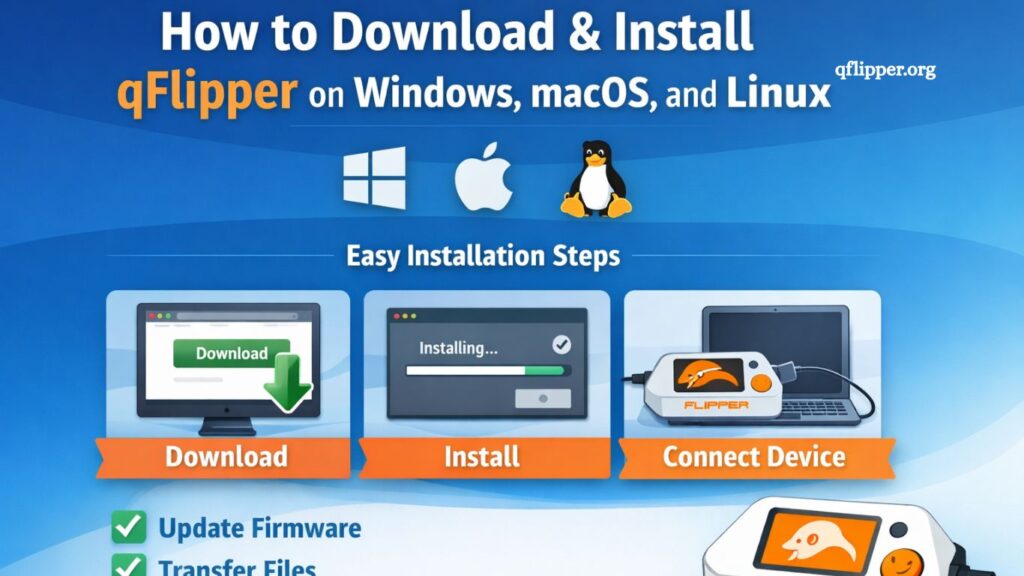
qFlipper is an essential desktop application for managing and updating Flipper devices efficiently. It provides users with a simple interface for updating firmware, managing files, and performing device maintenance across multiple operating systems. Whether you are using Windows, macOS, or Linux, installing qFlipper correctly ensures smooth device performance and reliable updates.
This guide explains how to download and install qFlipper step by step on all major platforms while keeping the process simple, clear, and efficient.
What is qFlipper?
qFlipper is an official desktop tool developed to support Flipper devices. It acts as a bridge between your computer and the device, enabling seamless firmware updates, file transfers, and system diagnostics. The software ensures your device remains up to date with the latest features and security improvements.
Key features include:
- Firmware updates with one click
- File management system for device storage
- Device health monitoring
- Cross-platform compatibility
- Fast and secure data transfer
Users rely on qFlipper to maintain device stability and access advanced features without the need for technical complexity.
Read More: What is qFlipper and How Does It Work With Flipper Zero?
System Requirements for qFlipper
Before installation, ensure your system meets the basic requirements.
- Windows
- Windows 10 or later
- Minimum 4GB RAM
- USB port for device connection
- macOS
- macOS 10.14 (Mojave) or newer
- Intel or Apple Silicon processor
- At least 4GB RAM
- Linux
- Ubuntu 20.04+ or equivalent distribution
- USB support enabled
- Required dependencies installed
Meeting these requirements ensures stable performance and prevents installation issues.
How to Download qFlipper
Downloading qFlipper is straightforward. The official release is available for all supported operating systems.
- Windows Download
- Visit the official qFlipper download page
- Select the Windows version
- Download the installer (.exe file)
- macOS Download
- Open the official qFlipper website
- Choose the macOS version
- Download the .dmg file
- Linux Download
- Go to the official release page
- Select Linux package (.deb or .AppImage)
- Save the file to your system
Always download qFlipper from official sources to avoid security risks or outdated versions.
How to Install qFlipper on Windows
Installation on Windows is simple and requires minimal effort.
- Step-by-step process:
- Locate the downloaded .exe file
- Double-click to run the installer
- Allow system permissions if prompted
- Follow the installation wizard instructions
- Click “Install” and wait for completion
- Launch qFlipper from the Start Menu
- Post-installation tip:
Connect your Flipper device using a USB cable to ensure the software recognizes it automatically.
How to Install qFlipper on macOS
macOS installation requires a few additional security steps due to system verification rules.
- Step-by-step process:
- Open the downloaded .dmg file
- Drag qFlipper into the Applications folder
- Open Applications and launch qFlipper
- If blocked, go to System Settings > Privacy & Security
- Click “Allow” to run the application
- Additional note:
First-time launch may take a few seconds as macOS verifies the application.
How to Install qFlipper on Linux
Linux users can install qFlipper using either a .deb package or AppImage, depending on their distribution.
- Using .deb package (Ubuntu/Debian-based systems)
- Open a terminal in the download directory
- Run the command:
- sudo dpkg -i qflipper.deb
- Fix dependencies if required:
- sudo apt-get install -f
- Launch qFlipper from the applications menu
- Using AppImage
- Download the AppImage file
- Make it executable:
- chmod +x qFlipper.AppImage
- Run the application:
- ./qFlipper.AppImage
- Tip:
AppImage does not require installation and runs directly, making it ideal for portable use.
Connecting Flipper Device to qFlipper
After installation, connecting your device is essential for full functionality.
- Use a high-quality USB cable
- Connect the Flipper device to your computer
- Open the qFlipper application
- Wait for automatic device detection
- Access firmware update or file manager options
If the device is not detected, try switching USB ports or restarting the software.
Common Installation Issues and Fixes
Even though installation is simple, some users may face minor issues.
- Device not detected
- Reconnect the USB cable
- Restart qFlipper
- Update USB drivers
- macOS security block
- Go to Privacy & Security settings
- Manually allow qFlipper
- Linux dependency error
- Run system update commands
- Install missing packages manually
- Application not launching
- Reinstall the latest version
- Check system compatibility
These fixes resolve the most common problems without technical support.
Updating qFlipper
Keeping qFlipper updated ensures optimal performance.
- Open qFlipper
- Check for updates in settings
- Download the latest version if available
- Install the update and restart the application
Regular updates improve stability and add new features.
Advantages of Using qFlipper
qFlipper provides several advantages for users managing Flipper devices:
- Simplified firmware updates
- Centralized file management
- Cross-platform compatibility
- Secure and stable connection
- User-friendly interface
These benefits make it an essential tool for both beginners and advanced users.
Best Practices for Smooth Operation
To ensure smooth performance:
- Always use original USB cables
- Keep qFlipper updated
- Avoid interrupting firmware updates
- Maintain sufficient system storage
- Close unnecessary background applications
Following these practices improves reliability and reduces errors.
Frequently Asked Questions
What is qFlipper used for?
qFlipper is used to manage Flipper devices, update firmware, and transfer files easily across supported operating systems.
Is qFlipper free to download?
Yes, qFlipper is completely free and available for Windows, macOS, and Linux users.
Where can I download qFlipper safely?
You should always download qFlipper from the official Flipper website to ensure security and the latest version.
Can qFlipper run on all Windows versions?
qFlipper works on Windows 10 and newer versions, provided the basic system requirements are met.
Why is qFlipper not detecting my device?
This usually happens due to a faulty USB cable, outdated drivers, or incorrect port connection.
Do I need the internet to use qFlipper?
Internet is only required for firmware updates and downloads; basic device functions work offline.
Is qFlipper safe to install on macOS and Linux?
Yes, it is safe when downloaded from official sources and follows standard installation steps for each OS.
Conclusion
qFlipper simplifies device management across Windows, macOS, and Linux by offering a reliable way to update firmware, transfer files, and monitor device performance. A correct installation ensures stable connectivity and smooth operation on all supported platforms. By following the official download sources and proper setup steps, users can maintain their Flipper devices efficiently and avoid common technical issues.